
Anyone that uses chatGPT for creativity – multiple thoughts, multiple ideas – will start to see signs of mis-matched answers. The reason is that ChatGPT can have it’s memory extended across devices. This seems good at first when you start with ChatGPT – but then after many conversations, it begins to merge and that causes confusion, especially when it is building code.
Your code base will be sprinkled with little one-offs that make the build impossible. It thinks “well if he wanted that for this project, he must want it for this one too” – which can be completely wrong. One project doesn’t necessarily mimic another. To make the best of it – is that now all the “Set Instructions” you have developed in your GPT – will now go out the window and be ignored (for the most part). So there are a few ways to solve this, but many times you will think it is solved – until you find out it has drifted and send you the wrong things, when it was saying “Full Production Ready” code – but it is not. You must reset or remove the “Memory” across chats.
Solution 1: Configure your ChatGPT environment to not have chats remembered across devices. Just uncheck the boxes to turn off the memory so your chats are clean when you start again.
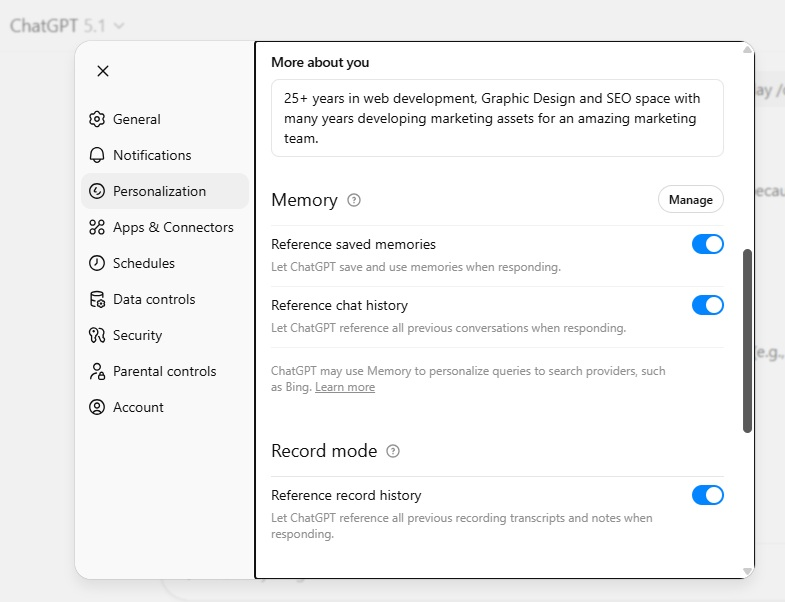
Solution 2: RESET MODE: ON
Type this into your chat window when you feel like the chat is getting confused, drifting, not giving correct results – or basically mis-behaving. Keep it inline – call RESET MODE: ON.
That is it! That one line of code will help get your ChatGPT back to the same type of style and answers you started with. Hope it helps!
If you enjoy learning and building with AI – join our group of beginners that are now starting to use AI and ChatGPT to build, create and get motivated!
Wade Fitzgerald
Senior Web Developer (20+ Years)
Hybrid AI Builder / Teacher
One response to “ChatGPT RESET MODE – What and Why?”
Hi, this is a comment.
To get started with moderating, editing, and deleting comments, please visit the Comments screen in the dashboard.
Commenter avatars come from Gravatar.